
ACME's 11.17 Release includes a new integration with SendGrid, opening up the ability to design custom email templates to override the standard ACME layouts. You can control the entire look and feel of ACME email confirmations through this integration!
TABLE OF CONTENTS |
Prerequisites
- You must have an active SendGrid account and plan. This is separate from ACME and will be connected via API key. For more information, visit SendGrid's Pricing page.
- Generate API keys for ACME within the SendGrid application. If you intend to test in Sandbox, you will need separate API keys for ACME Sandbox and Production. Note: when prompted for access settings, select "full access".
- Create Sender Domain Authentication.
- Note: This must be the same domain that is defined in ACME Backoffice Theme>Email tab for the variable "b2c-from-email".
- Review the ACME SendGrid Data Variables + Test Data This documentation will help you build your Dynamic Templates and test them in SendGrid.
- Create a Dynamic Template in SendGrid for each email type you would like to customize. The template will be assigned a unique ID that will be entered in ACME Backoffice. (You can design the details of the template later. It can just be created initially to obtain the template IDs). View Sendgrid Documentation
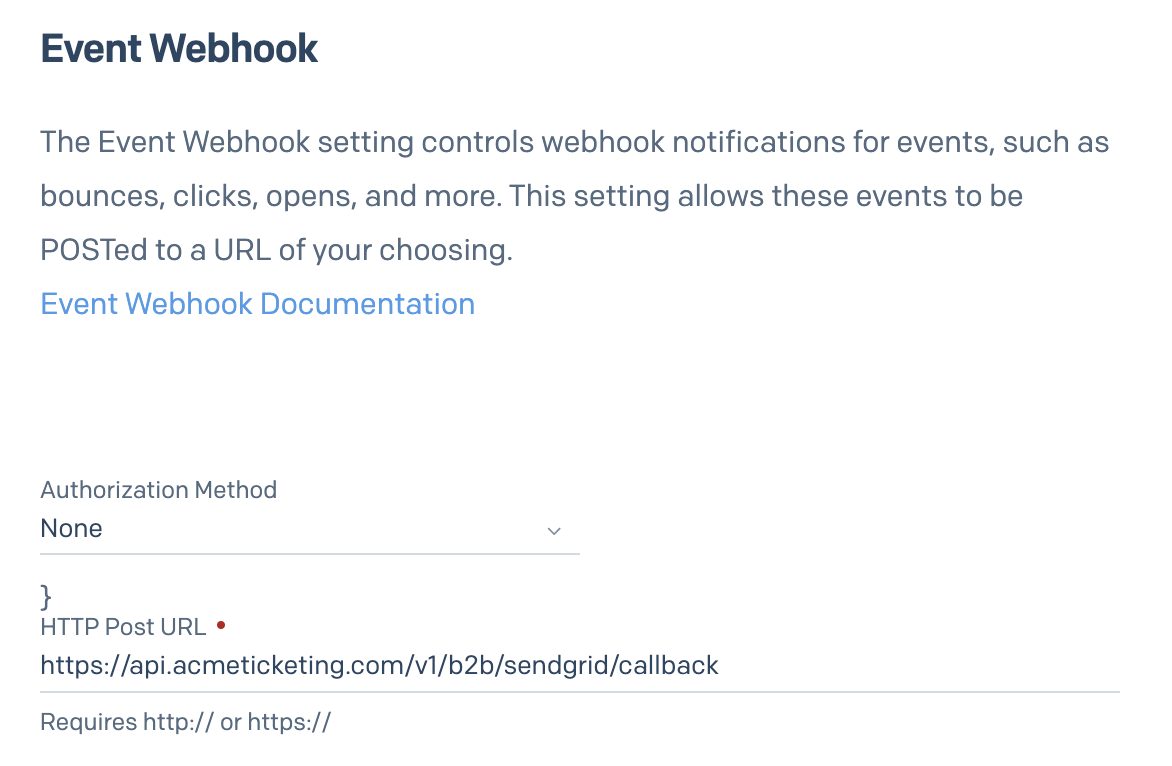
- Sendgrid Webhook Setup- Additional fields have been added to the Email Status tab within Order Details that will only get populated once the Webhook has been configured. These new fields are helpful in troubleshooting any deliverability issues experienced:
- Go to: Settings > Mail Settings > Event Webhook
- Enter in the HTTP Post URL:
- Important: Once you are live in production with emails from your SendGrid account, the webhook must always remain pointed to production to ensure status updates on the Order Details > Email tab
ACME Configuration
Once you have completed the prerequisites, you are ready to connect SendGrid to ACME!
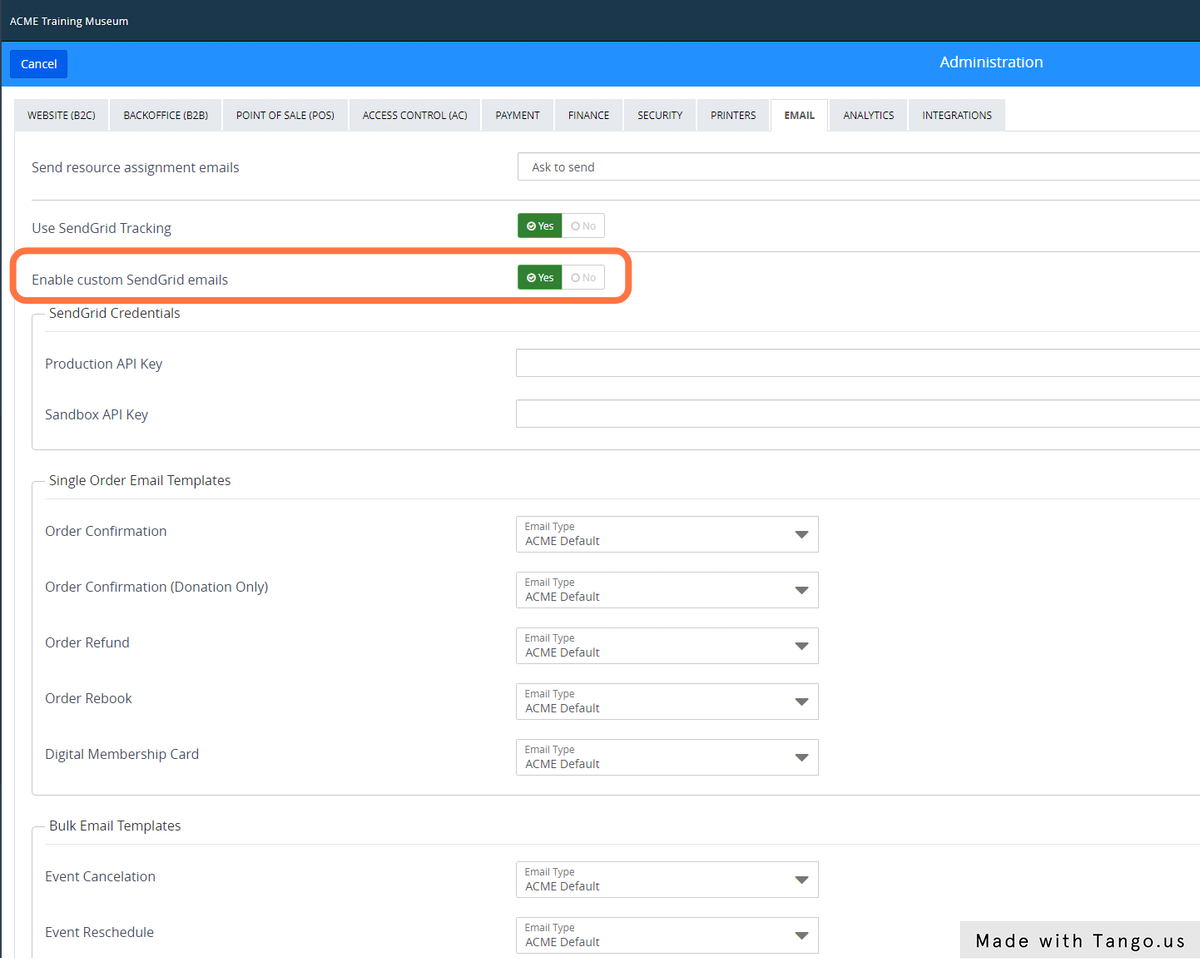
- In Backoffice>Settings>Administration>Email tab, set the "Enable custom SendGrid emails" toggle to YES.
- Enter your SendGrid API keys.
- Copy your API keys that were generated in SendGrid into the API Key field. The data will be masked upon entry for security.
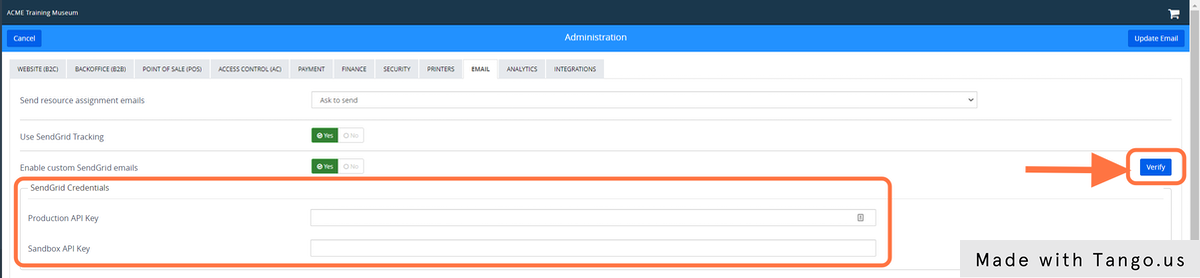
- Copy your API keys that were generated in SendGrid into the API Key field. The data will be masked upon entry for security.
- Set email type for each email template (ACME Default or Custom)
For each Email Template that you will customize, change the Email Type from "ACME Default" to "Custom".
Enter the SendGrid Template ID for each email template that you will customize.
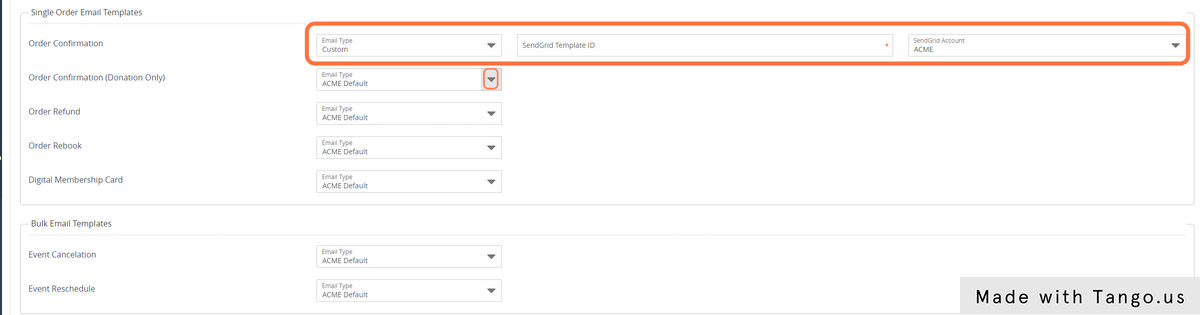
Change SendGrid Account setting
Set the SendGrid account name from ACME to your organization name
Click Update Email to save.
SendGrid Configuration
Once you have completed the ACME configuration setup to connect the two systems, ACME emails will utilize the custom template instead of the standard ACME layout.
To develop your dynamic templates in SendGrid, refer to SendGrid's documentation for guidance. Here are some helpful links: