
Refund Email
When you have configured an override template in ACME's Backoffice for Refund emails, they will continue to be triggered at the same time as ACME's default would, but will use your SendGrid template instead. This email is triggered when a user:
- Cancels the entire order in Backoffice
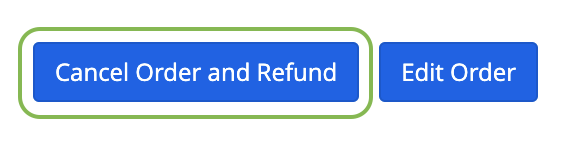
This is different than the scenario where the user uses the Edit Order process (via Backoffice or POS) and voids all of the items to quantity = 0. In that case, the Order Confirmation email is sent.Here are 2 files to help you build your dynamic template in SendGrid:
1. RefundEmail_SendGrid_DataVariables
This is an HTML file that you can paste into a Dynamic Template in SendGrid. It includes the ACME data variable + a label for each data element passed in the integration for the Refund Email. Once you have Test Data added to your template as well, you will be able to see how the variables render in a list.
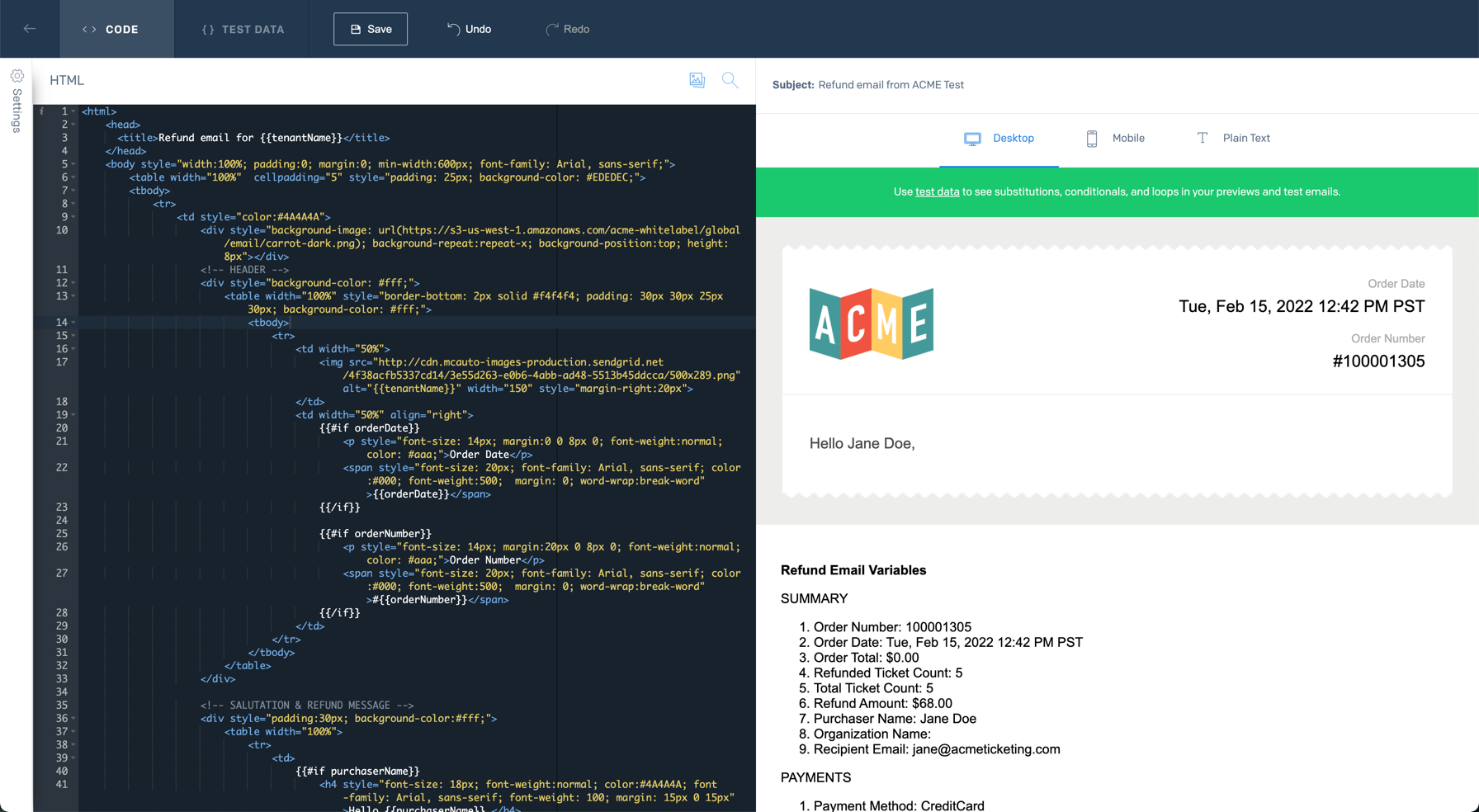
To test multiple scenarios, simply configure ACME Backoffice in a sandbox to use a specific SendGrid dynamic template and then trigger various emails to be sent. While you edit the body of your email, we recommend you leave the list of variables so you can review which variables are populated in each test scenario.
2. RefundEmail_SendGrid_TestData
This is a sample JSON file for a basic refund that you can insert into the Test Data of your Dynamic Template in SendGrid. It should get you started in understanding how to manipulate the test data in order to see how the different variables render in the Data Variables file.
We recommend testing with a range of events, ticket types, and scenarios specific to your venue and ACME configuration to ensure that you create a dynamic template that works as you intend for different purchases.